
Clean hidden metadata before you share
Inspect what is embedded in your photos and documents, remove what you choose, and export a clean copy — 100% offline on iPhone and Mac, no account, one-time purchase.


Free to try · iPhone $9.99 · Mac $19.99 one-time
Check your image for AI metadata — free
Drop an image below to see if it carries C2PA content credentials, AI-related IPTC tags, or XMP creator tool fields. Runs entirely in your browser.
Drop an image here or click to browse
JPEG, PNG, WebP — up to 25 MB. Processed entirely in your browser.
🔒 Your files never leave your browser. All processing happens locally — no server uploads, no tracking.
Why it matters: the same photo, labeled and not
We posted one AI-generated image to Instagram twice. With its AI metadata intact it got Instagram’s AI label; cleaned first, it did not.
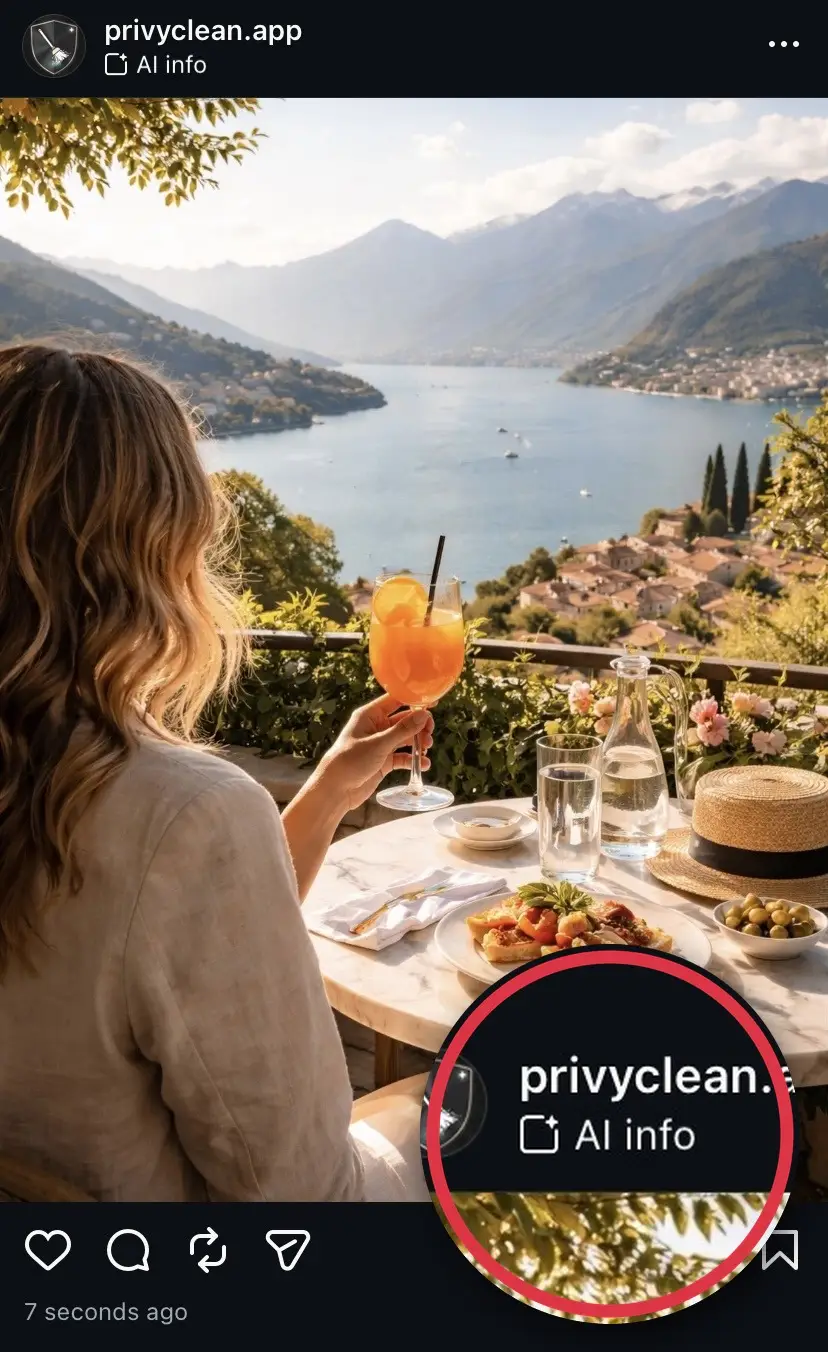

Result from our own test. Instagram’s labeling can change over time and may use other signals in the future, but removing C2PA and AI metadata addresses the most common trigger today.
Why checking matters more than blind removal
Many images do not carry AI metadata at all. A photo taken with a camera and edited in Lightroom without AI features will have EXIF and XMP data but no C2PA content credentials and no AI source type tags. Stripping metadata from that file would remove useful information (like the camera model and exposure) without any benefit from an AI labeling perspective.
Additionally, platforms like WhatsApp, Twitter/X, and some messaging apps strip metadata entirely when images pass through them. If you downloaded the file from one of those platforms, it may already be clean. Checking first saves unnecessary work.
Inspecting metadata before cleaning also gives you specific information: not just "AI detected" but which tool, which standard, and what exact fields are present. That tells you why a platform might be flagging the image — and whether removing the specific field will actually help.
Where AI metadata hides in image files
AI-related metadata is stored in several different locations depending on which tool created the image:
- C2PA manifests (JUMBF/caBX) — stored in APP11 marker
segments in JPEGs and
caBXchunks in PNGs. This is where ChatGPT/DALL-E, Adobe Firefly, and Microsoft Designer write their content credentials. Invisible to standard file properties viewers. - EXIF Software field — may say "Adobe Firefly", "DALL-E", or another AI tool name. Viewable in some metadata viewers but easy to miss in standard file info panels.
- XMP CreatorTool — an Adobe standard field that identifies the application that created the file. AI tools often write their own name here.
- IPTC Digital Source Type — set to
trainedAlgorithmicMediafor AI-generated content. Used by Midjourney, many stock platforms, and tools that skip full C2PA but do write IPTC. - PNG tEXt chunks — Stable Diffusion tools (Automatic1111, ComfyUI, Forge) write the full generation prompt, negative prompt, model, sampler, CFG scale, and seed as plaintext. ComfyUI can write the entire workflow graph as a JSON block. These show up in the raw file but not in standard metadata viewers.
Standard "Get Info" on Mac, "Properties" on Windows, or Apple Photos' information panel will not show most of these. They display basic EXIF only. You need a tool that specifically parses C2PA structures and PNG chunks.
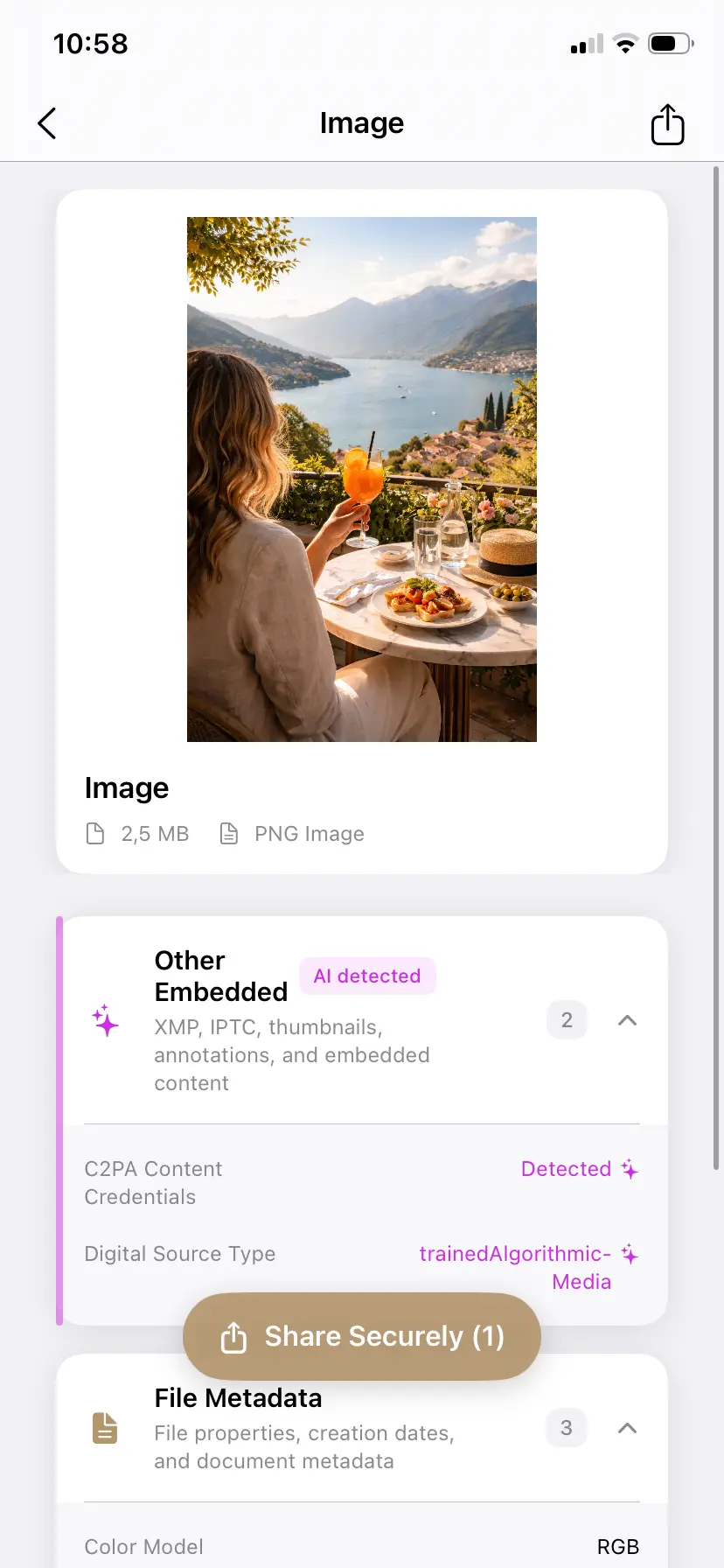
How to check with PrivyClean
- Open the image in PrivyClean. On iPhone and iPad, you can use the share sheet from Photos or Files. On Mac, you can drag files into the app or use the Finder Quick Action.
- Look at the metadata groups. PrivyClean organizes everything by category: AI-related fields, GPS location, camera info, author/copyright, and other embedded data. You can see at a glance which categories are present.
- Check for the AI Detected badge. If C2PA credentials or other AI signals are present, PrivyClean highlights them clearly with a risk indicator.
- Expand a group to see the specific fields and values. For C2PA, you will see which tool wrote the credentials and what the Digital Source Type is set to.
- Decide what to do. You can clean specific categories or all metadata. The original file is never modified — PrivyClean always exports a new copy.
Other ways to check (for context)
Several other tools can inspect AI metadata, each with different trade-offs:
- contentcredentials.org/verify — Adobe's free online C2PA checker. Reads C2PA manifests accurately and shows a detailed breakdown. Requires uploading your file to their servers, which may not be appropriate for client work or sensitive source files.
- ExifTool (command line) — a powerful command-line tool that reads almost every metadata format. Very thorough but requires technical comfort. It does not have a visual interface for grouping or risk assessment.
- Right-click → Get Info (Mac) or Properties (Windows) — shows basic EXIF only. Will not surface C2PA content credentials or PNG generation chunks.
PrivyClean's advantage is that it checks all formats in one grouped view, works entirely offline, and lets you clean immediately after inspecting — without switching tools.
What to do after checking
The appropriate response depends on what you find:
- AI metadata found, genuine AI content: decide whether to keep the metadata for transparency or remove it. If you are posting to EU audiences after August 2026, consider keeping it for AI Act compliance.
- AI metadata found, false positive (real photo with AI edits): cleaning the metadata removes the trigger that causes platforms to label real photographs as AI-generated. See our Instagram AI label guide for the specific steps.
- No AI metadata found: your file is clean for that category. You may still want to check for GPS location or camera fingerprint data — see our guide to checking all photo metadata.