
Clean hidden metadata before you share
Inspect what is embedded in your photos and documents, remove what you choose, and export a clean copy — 100% offline on iPhone and Mac, no account, one-time purchase.


Free to try · iPhone $9.99 · Mac $19.99 one-time
What a Word file actually carries
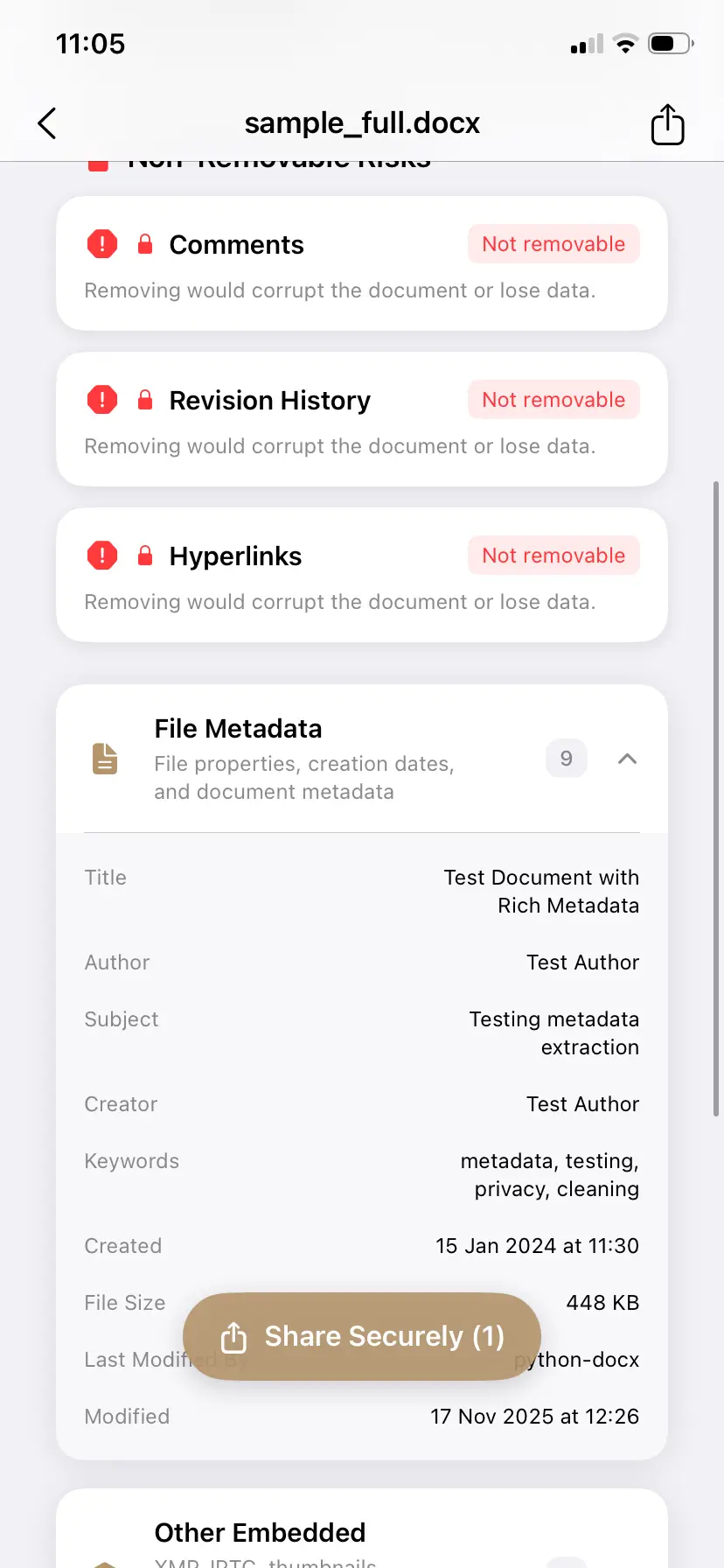
The DOCX format stores document properties in internal XML parts, and Word fills most of them in automatically without ever asking:
- Author and Last modified by — account names of whoever created and last saved the file.
- Company and Manager — inherited from Office installs and templates.
- Total editing time — cumulative minutes the document was open for editing. If you bill by the hour, this number is in the file you send.
- Created and Modified timestamps — when work actually started, and when it really finished.
- Revision number — how many editing sessions the document went through.
- Template path — which .dotm the file came from, which can expose internal file naming or another matter's template.
- Tracked changes and comments — the negotiation you thought was internal, one "Show markup" click away.
How professionals actually get burned
- Law firms: a draft goes to opposing counsel with tracked changes intact — every fallback position and internal comment readable under Review → Show Markup. Document-metadata leaks are a recognized professional-responsibility issue for exactly this reason.
- Consultants and agencies: the proposal template was reused from another engagement, and "Last modified by" or the company field names the previous client's team.
- Anyone billing by time: "Total editing time: 47 minutes" inside a deliverable invoiced as two days of work.
- HR and recruiters: offer letters and rejection templates carrying the author trail of everyone who ever touched the template.
Inspect and clean Word files before they leave your device
PrivyClean shows every hidden field with its actual value — then removes author info, revision traces, and risky items in one pass. Batch cleaning and Finder Quick Actions on Mac.
Free to try · iPhone $9.99 · Mac $19.99 one-time
Removing identifying information from a Word document
"Identifying information" is Microsoft's own phrasing, and it covers a
specific set: the Author and Last modified by
names, the Company and Manager fields
inherited from whichever Office install created the file, the
template path, and the names attached to every tracked change
and comment. Those last two are the ones people miss — a comment thread
carries the initials and full account name of everyone who wrote in it, and
the template path can spell out a folder tree like
Clients/AcmeCorp/2026/.
Word also offers a related setting — Remove personal information from file properties on save — but it is a per-document preference, not a policy: it applies only to the file you enable it on, does not travel with that file when someone else edits it, and covers names rather than timestamps, template paths or editing time. It also lives in a different place on Mac and behaves differently there; see the Mac section below, or go straight to the Mac metadata remover.
Option 1: Word's built-in Document Inspector
Word ships a manual tool that handles the basics for a single file:
- Open the document and go to File → Info.
- Choose Check for Issues → Inspect Document.
- Run the inspection and click Remove All next to Document Properties and Personal Information.
- Save the file — ideally under a new name, so you keep the original.
Honest assessment: this works, and for one file with simple needs it is fine. Its weaknesses are operational — one file at a time, no view of the actual values before removal, easy to forget on deadline, and inconsistent behavior between Word versions (the Mac and Windows inspectors do not check identical categories). It is a checkbox, not a workflow.
Option 2: inspect-first cleaning with PrivyClean
- Drop the file in — PrivyClean shows every metadata field with its actual value: the author names, the company, the editing time, the timestamps. You see what the recipient would see.
- Review flagged risks — items that cannot be safely auto-removed (certain embedded structures) are flagged transparently instead of silently skipped.
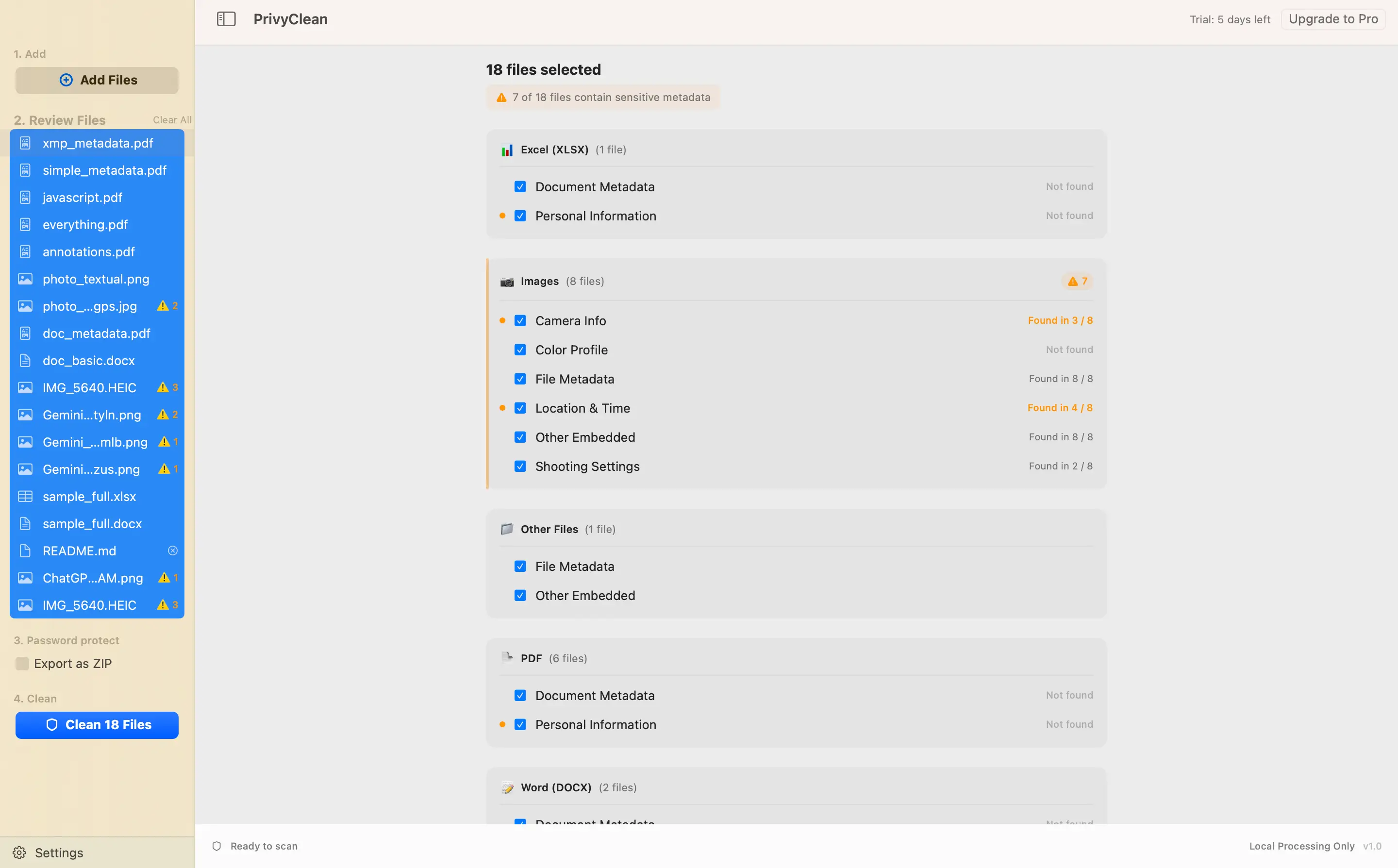
- Export a cleaned copy — original untouched, cleaned file ready to send. On Mac, clean a whole folder of deliverables in one batch, or right-click any file in Finder → Quick Actions → Clean Metadata.
Removing Word metadata on a Mac, specifically
Word for Mac does not have the full Document Inspector that Windows users get. The closest built-in option is a buried checkbox: Word → Preferences → Security → "Remove personal information from this file on save" — which must be set per document, only covers personal information (not timestamps, template paths, or editing time), and silently depends on you remembering to re-save. Microsoft 365 for Mac has narrowed the gap but still does not match the Windows inspector's categories.
This is exactly the case PrivyClean for Mac was built for: drop one file or a whole folder in, see every field with its actual value, and export cleaned copies — or skip the app window entirely and right-click any document in Finder → Quick Actions → Clean Metadata. Everything runs locally on your Mac.
The demo above shows both routes: the Finder right-click action on a document, and a batch pass over mixed files where every cleaned copy lands back in Finder alongside the untouched originals.
Make it a send-checklist habit
The pattern that works in practice is not heroic vigilance, it is a default: nothing leaves the machine without a metadata pass. Attach the cleaned copy, keep the original. The whole step takes seconds, and it is the difference between controlling what a file says about you and hoping nobody clicks File → Info on the other end.
Related guides
- Remove metadata from Excel spreadsheets
- Clean hidden metadata from PDFs, Word and Excel files
- The complete Word & Excel metadata guide
- AI metadata in documents — what your PDF reveals about how it was made