Clean the finished video before you post it
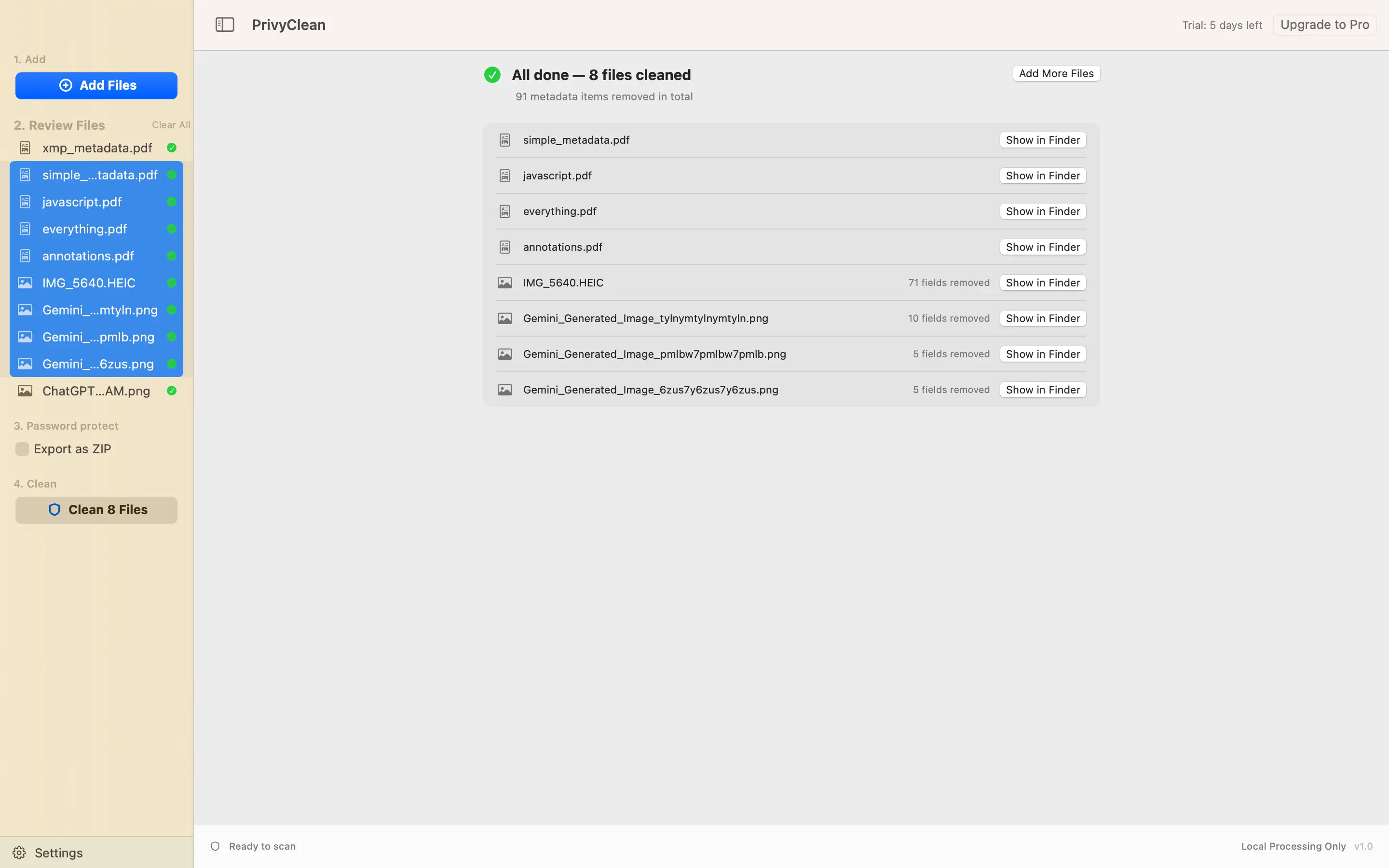
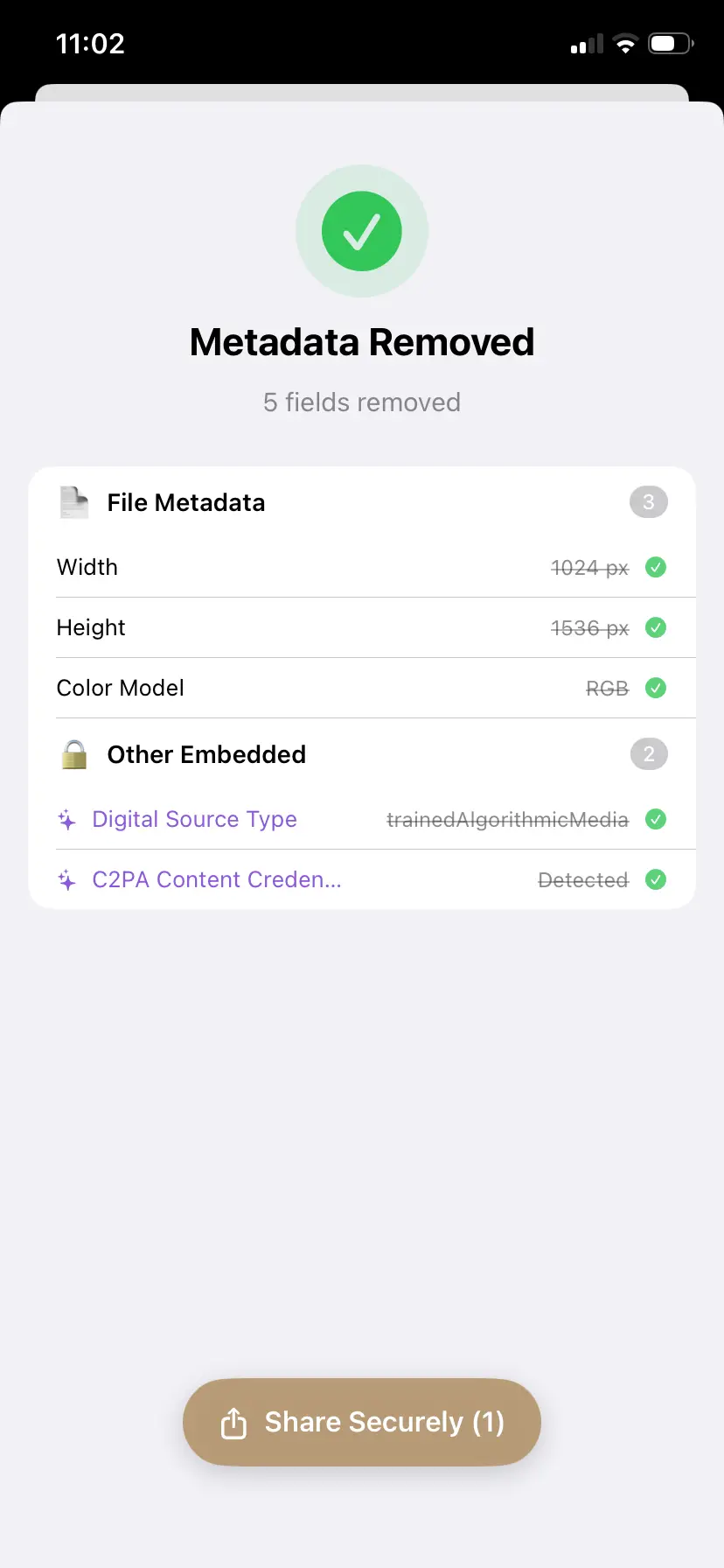
PrivyClean removes content credentials, AI tags, location and camera details from MOV, MP4 and M4V videos, entirely on your iPhone or Mac.


Free to try · iPhone $9.99 · Mac $19.99 one-time
Why Reels get the AI label
It is the same automatic system as feed posts and Stories: Instagram reads the file, not what the video looks like. If the video or its cover carries C2PA content credentials or an AI "digital source type" tag, the label is applied when you upload. The full background is in our Instagram AI label guide.
Reels add one twist: they are almost always made in an editor. CapCut, Instagram's own editor and other video apps ship AI features — auto-captions, background removal, AI effects — and an app that uses them can write AI metadata into the video it exports.
"I cleaned my photos first" — why that isn't enough
A Reel made from photos is a brand-new file. The editor doesn't pass your photos' metadata through; it writes its own. So even if every photo was clean, the exported video carries whatever the editor added. That's why the order matters:
- Edit your Reel in the app you normally use.
- Export or save the finished video to your camera roll.
- Clean that video in PrivyClean — on iPhone, in the Photos tab (the picker shows both photos and videos), or on Mac by dragging it in.
- Post the cleaned copy. In your camera roll it looks identical to the original, so pick the one PrivyClean saved.
If you used one of Instagram's or Meta's own AI effects while making the Reel, Meta can label it from its own side. Cleaning the file can't change that; the fix there is to make the Reel without those effects.
Already posted?
The label can't be removed from a live Reel: Instagram evaluates the file at upload, and editing the post doesn't re-check it. Delete the Reel, clean the finished video and its cover image, and post again. Unlike a Story, a Reel loses its likes and views when you delete it, so it is worth cleaning before the first upload.
What PrivyClean removes from a video
- Content credentials (C2PA) and AI source tags in the file's metadata.
- Location — where the video was recorded.
- Dates and camera details — device make, model and software.
The video and sound themselves aren't re-encoded, so quality stays the same. Get it for iPhone or Mac.
When to keep the label
If your Reel genuinely is AI-generated and your audience benefits from knowing, keep the disclosure — Instagram's "Add AI label" toggle is there for exactly that. Cleaning is about accuracy and control: a video you filmed yourself shouldn't be presented as AI because of one tool in your editor.
Related guides
- The complete Instagram AI label guide (feed posts)
- Remove the AI content label from Instagram Stories
- Lightroom and the Instagram AI label
- TikTok's "AI-generated" label, explained
- AI label remover — Facebook and every other platform