
Clean hidden metadata before you share
Inspect what is embedded in your photos and documents, remove what you choose, and export a clean copy — 100% offline on iPhone and Mac, no account, one-time purchase.


Free to try · iPhone $9.99 · Mac $29.99 one-time
What the badge shows when someone clicks it
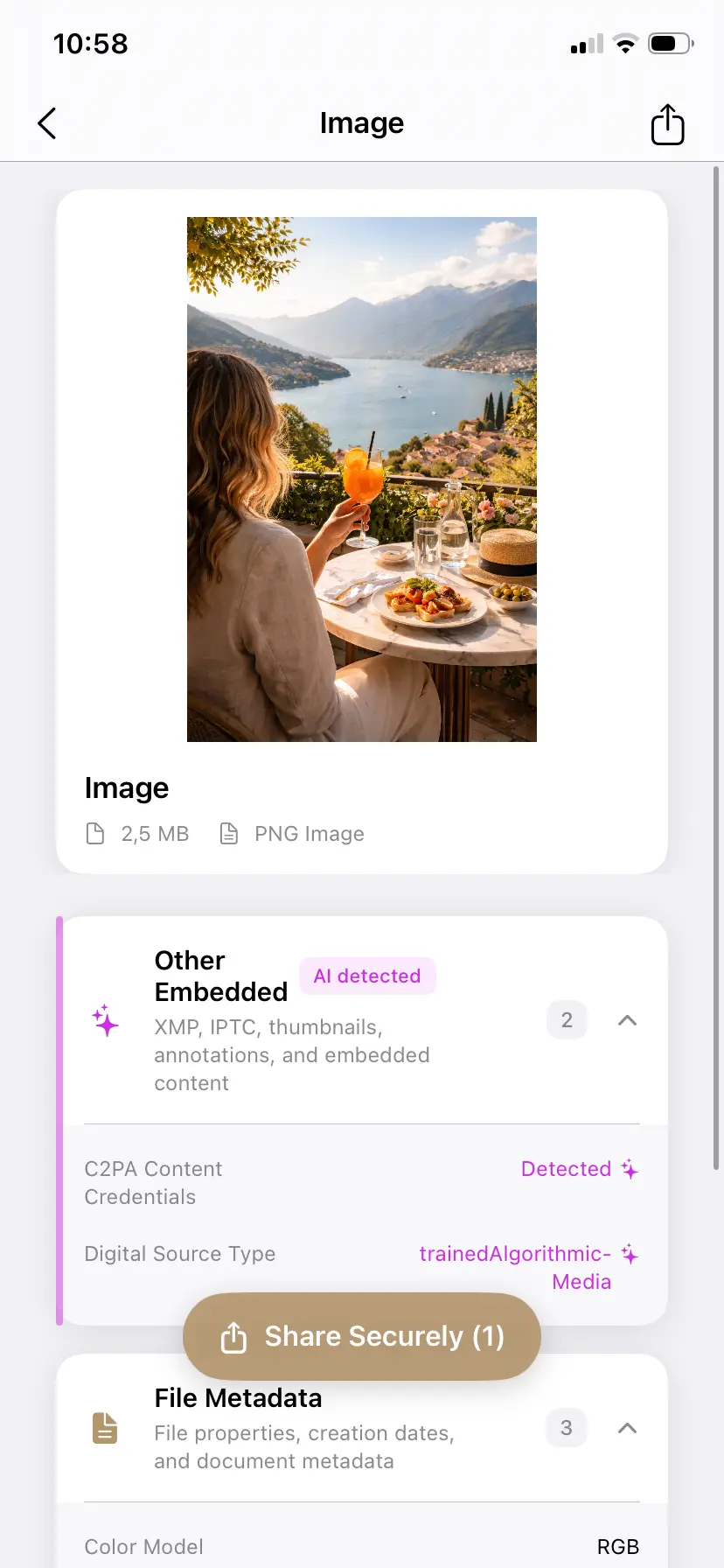
The CR badge is not just an icon — it is a disclosure panel. LinkedIn reads the C2PA manifest embedded in your image and presents it in plain language: the creating or editing tool (Photoshop, Firefly, DALL-E, Microsoft Designer), the issuer of the credential, the date, and an AI assertion when generative tools were involved. Your image ships with a public record of your workflow, readable by anyone in your feed.
LinkedIn does not run its own AI detector — it reads what the file already carries. The full background on the standard is in What is C2PA? Content credentials explained.
How professionals get badged by accident
- The banner from a design tool — Firefly-powered templates and AI layout features in design apps write credentials into the export, even when your content and photo are entirely human-made.
- The retouched headshot or product photo — one Generative Fill, Generative Expand, or AI cleanup pass in Photoshop embeds a full C2PA manifest into an otherwise real photograph.
- The AI-illustrated post graphic — a DALL-E or Designer image dropped into a carousel keeps its credentials through most export paths.
The result: your real work carries an AI badge in the one feed where your professional credibility is the product. The label is technically accurate about the metadata and misleading about the work.
Check what LinkedIn will see — free, in your browser
Drop an image below to see the content credentials it carries and strip them — one free clean, processed entirely in your browser, nothing uploaded. For unlimited images, batches, and documents, use the iPhone or Mac app.
Drop an image here or click to browse
JPEG, PNG, WebP — up to 25 MB. Processed entirely in your browser.
🔒 Your files never leave your browser. All processing happens locally — no server uploads, no tracking.
Why can't I turn off the CR badge? The file is the only control
- Inspect the image before posting. PrivyClean shows the C2PA manifest exactly as LinkedIn will read it — which tool, which assertion, which date.
- Decide. Accurate disclosure on genuinely AI-generated content is often worth keeping. A misleading badge on real work is worth removing.
- Clean and post. Export a cleaned copy (original untouched) and upload that. No manifest, no badge. Already posted? Delete, clean the original, repost.
That third step is the same operation whatever the destination — LinkedIn just happens to surface it as a visible badge. The full walkthrough is in the guide to removing C2PA content credentials from an image.
Control what your LinkedIn posts disclose
PrivyClean shows the content credentials in your images and documents, and removes what you choose — 100% offline, one-time purchase.
Free to try · iPhone $9.99 · Mac $29.99 one-time
Where the CR badge shows up on LinkedIn
- Feed post images — personal and company page posts alike; the badge renders top-left on the image.
- Article and newsletter cover images — the cover travels with every distribution of the piece.
- Carousel and document posts — evaluated per file; one credentialed slide can badge the asset.
- Ads — sponsored content uses the same upload pipeline, so a credentialed campaign asset carries its badge into paid distribution, in front of exactly the audience you paid to reach.
For marketing teams: make it a pre-publish QA step
Most company-page badges trace back to one workflow: the design team builds campaign assets in tools with AI features enabled (Firefly-powered templates, Designer, AI expand for resizing), exports, and hands off to whoever schedules the posts — and nobody in that chain ever sees the metadata. The fix is a single QA step: before assets go into the scheduler, batch-inspect the folder. On Mac, PrivyClean cleans an entire campaign's assets in one pass, or per-file from Finder → Quick Actions. Thirty seconds per campaign, and your paid impressions stop carrying a workflow disclosure you never chose to make.
The professional angle goes beyond images
If the CR badge matters to you, your documents deserve the same scrutiny: the PDFs and decks you share on LinkedIn or send afterward can carry their own AI fingerprints — author fields naming AI tools, generator-library traces, and credentials inside embedded images. That story is covered in AI metadata in documents, and the classic hidden-data risks in Word and Excel files apply to everything a professional sends. For EU-facing content, the EU AI Act's transparency rules (August 2026) make machine-readable disclosure a compliance topic, not just a preference.
Related guides
- X's "Made with AI" label, explained
- The complete Instagram AI label guide
- Remove C2PA content credentials from any image (free tool)
- AI metadata in documents
- What is C2PA? Content credentials explained