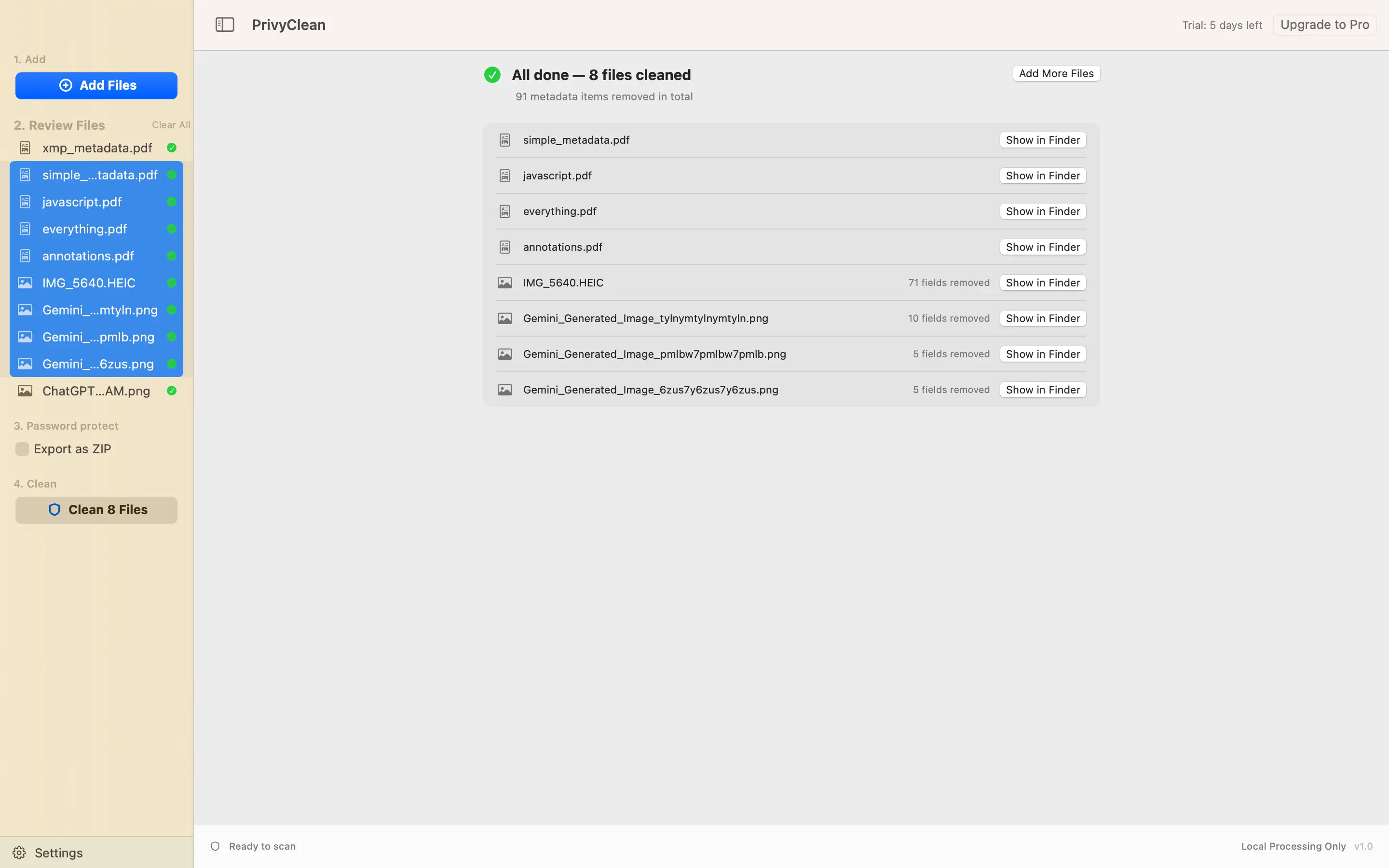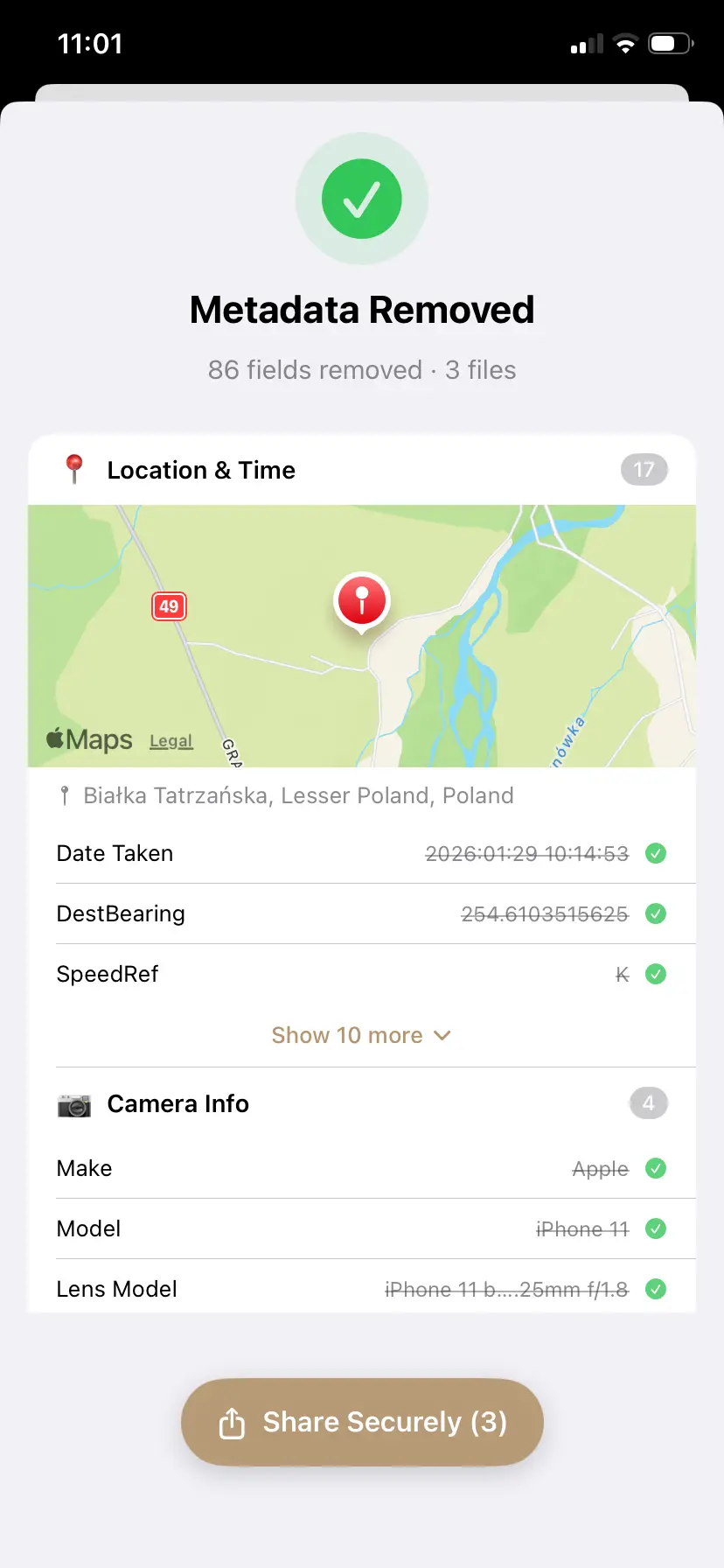
Clean your Lightroom export before you post it
PrivyClean shows the content credentials Lightroom wrote and saves a copy without them, entirely on your iPhone or Mac.


Free to try · iPhone $9.99 · Mac $19.99 one-time
What Lightroom writes into your export
We exported a photo from Lightroom for iPhone (version 11.6.1) after a single Generative Remove and looked inside the file. Alongside the usual camera details, it carried:
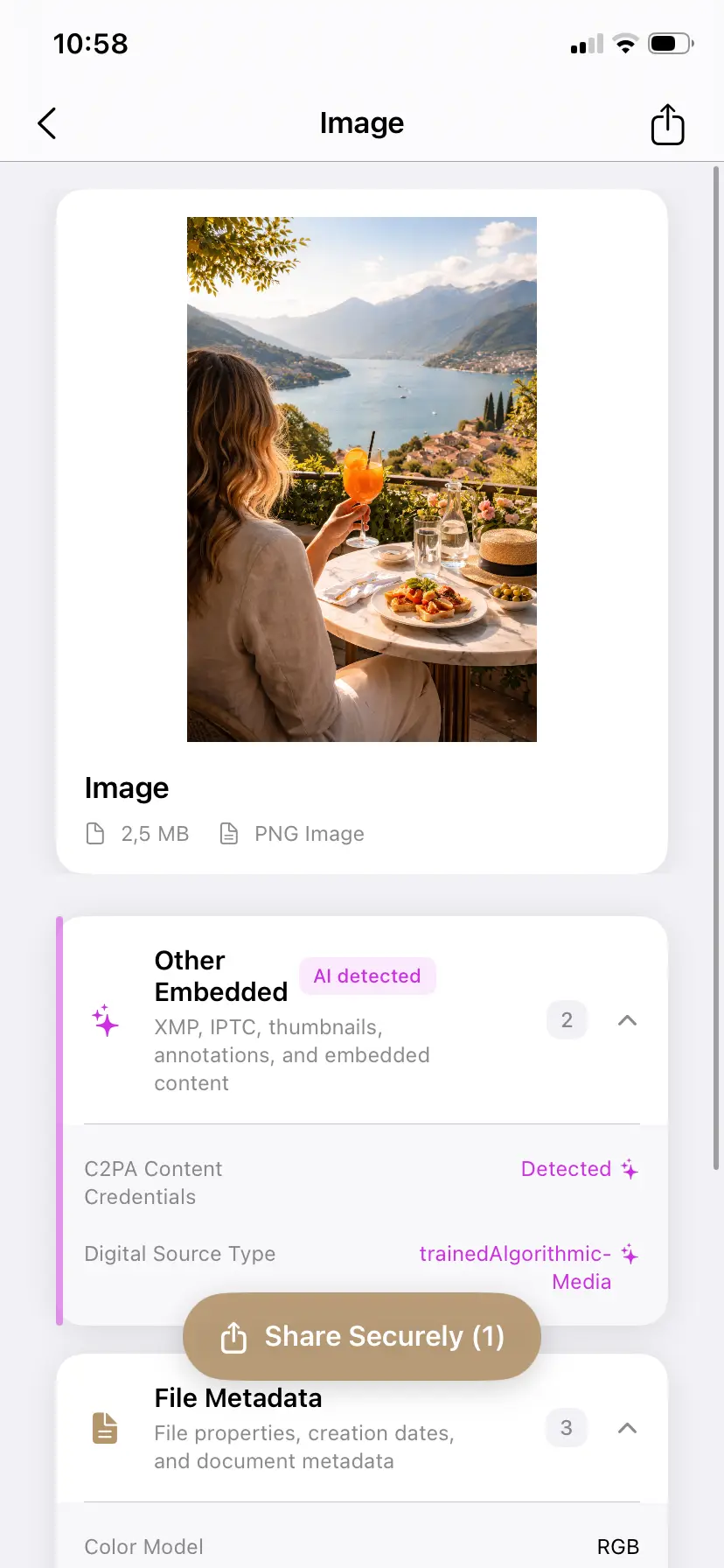
- A C2PA manifest signed by Adobe Lightroom — a signed record listing the photo as opened, drawn on and edited by "Adobe Remove Object", with the Firefly model version used for the removal.
- A digital source type of "composite with trained algorithmic media" — the standard IPTC value for a real photo changed with generative AI. It appears twice: inside the C2PA manifest and again in the file's XMP metadata.
- "Adobe Lightroom 11.6.1 (iOS)" in the EXIF software and XMP creator-tool fields.
The digital source type is the part that matters for labels. It is one of the industry signals Meta reads to decide whether to label a post, and it tells every platform that generative AI was used on the photo.
Which Lightroom tools add it
- Generative Remove with "Use Generative AI" turned on — the removal is done by Adobe Firefly, and the export records it.
- Distraction Removal — photographers' associations list it among the Lightroom tools that add content credentials.
- Not everyday edits: exposure, white balance, color, crop and presets don't add an AI marker on their own.
The line is moving, though. Lightroom Classic users report that since version 15.5.1 (September 2026) credentials can appear after other Remove-tool edits as well. The only reliable answer is in the exported file, so check it.
The export setting isn't an off switch
Lightroom's export dialog has a Content Credentials option, and it is natural to assume that setting it to off keeps them out of the file. Since Lightroom Classic 15.5.1, users on Adobe's own forum report the opposite: the dialog says credentials are off, and the exported photo still carries an AI manifest naming "Adobe Remove Object". Adobe ties credentials to generative edits, so the setting cannot be relied on for them.
That leaves two options: avoid generative tools on photos you will post, or remove the credentials from the exported file afterwards.
Clean one Lightroom export now, free
Drop your exported JPEG below to see what it carries and strip the content credentials and AI tags — one free clean, processed entirely in your browser. Nothing is uploaded. For your whole library, use the iPhone app, or the Mac app, which can clean a Lightroom Classic export folder from a Finder right-click.
Drop an image here or click to browse
JPEG, PNG, WebP — up to 25 MB. Processed entirely in your browser.
Your files never leave your browser. All processing happens locally — no server uploads, no tracking.
Where Instagram shows the label for a Lightroom edit
Look in more than one place. Since September 2024, Meta puts the label for photos that were edited with AI tools in the post's ⋯ menu, and keeps it under your name only for images that were fully generated. A Lightroom generative edit is marked as a composite, so the label, if Instagram applies one, is usually in the menu. When we posted a Lightroom Generative Remove export in October 2026, nothing appeared under the name.
Instagram is not the only place the credentials show up: LinkedIn puts a "CR" badge on images that carry them, and anyone can read them with a C2PA viewer.
How to post a Lightroom photo without the AI marker
- Export from Lightroom as usual — JPEG is fine.
- Inspect the export in PrivyClean. You will see the content credentials and which tool wrote them, so you know whether the photo carries an AI marker at all.
- Clean it. PrivyClean saves a new copy without the content credentials and AI tags. Your Lightroom export stays untouched.
- Post the cleaned copy. In your camera roll it looks identical to the original, so pick the one PrivyClean saved. Posting the original by mistake is the most common reason a "cleaned" photo still gets labelled.
Already posted? Instagram reads the file at upload and doesn't re-check it, so the label can't be edited away. Delete the post, clean the export, and post the cleaned copy. Making a Reel from your edits? Clean the finished video, not just the photos — see Reels and the AI label.
When to keep the credentials
Content credentials exist so people can see how an image was made. If a photo competition, a client or a publication asks you to disclose generative edits, keep them — some competitions now ask. In Europe, the EU AI Act's rules for photographers are worth reading too. Removing them is about control: a photo you took yourself shouldn't carry an AI marker you didn't choose, and the decision should be yours.
Related guides
- The complete Instagram AI label guide
- Remove the AI content label from Instagram Reels
- Remove C2PA content credentials from any image
- LinkedIn's "CR" content credentials badge
- The EU AI Act for photographers
- What is C2PA? Content credentials explained